Before you start
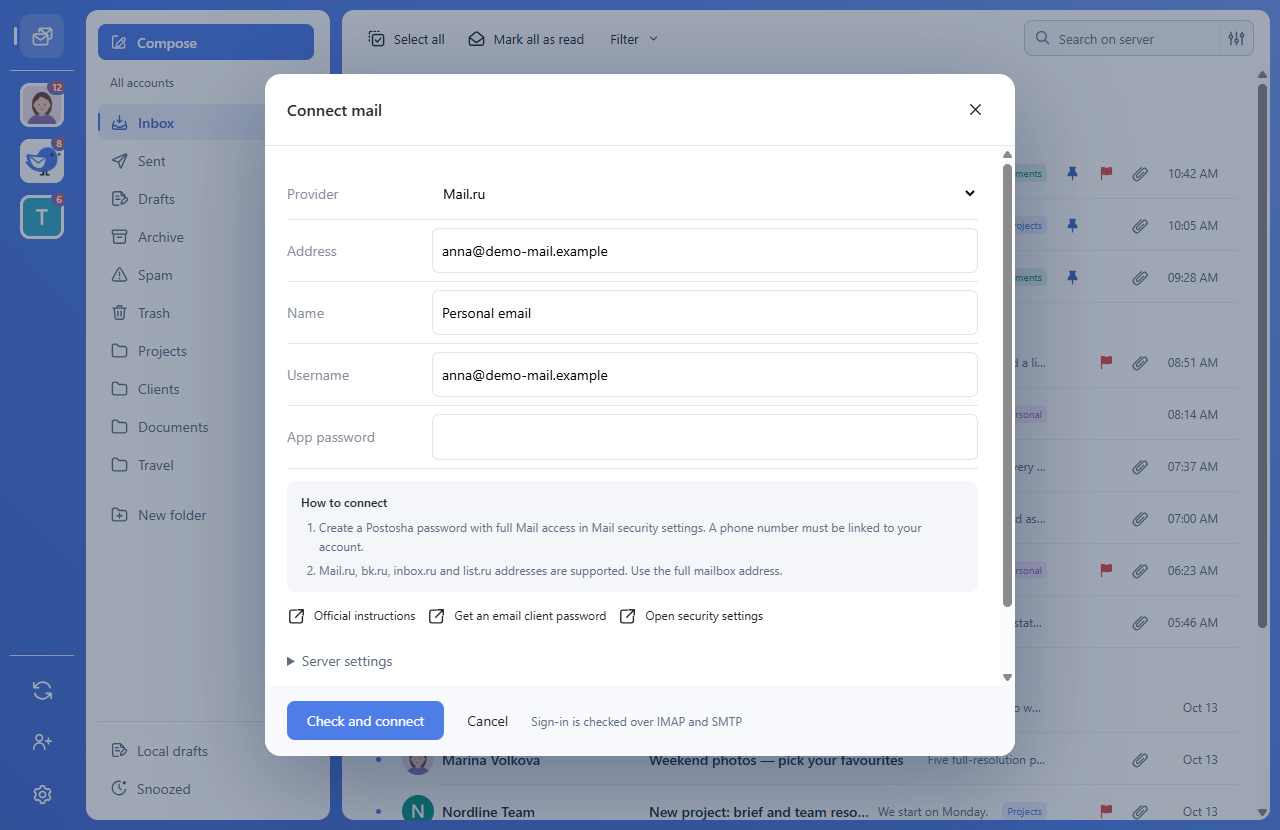
Check how your provider allows third-party apps to sign in. An app password may be required; a password used for webmail is not always accepted. For a work or custom-domain mailbox, ask your administrator for the server details and permitted authentication method.
Add the account
- Install Postosha and open the add-account screen.
- Choose a provider or enter custom IMAP/SMTP settings. Use your full email address.
- Enter the app password and any server, port and TLS details your provider requires.
- Wait for folders, send a short message to yourself and reply. Check Sent and test an attachment.
Check again after restarting
Make sure the account reconnects and the expected folders are visible. Keep your previous mail app and its local archives until you have checked your important data.
Windows shows an unknown publisher
If Windows shows an unknown publisher, make sure you downloaded the installer from the official Postosha link. Keep Windows protection enabled. In-app update verification and the publisher identity shown by Windows are separate checks.